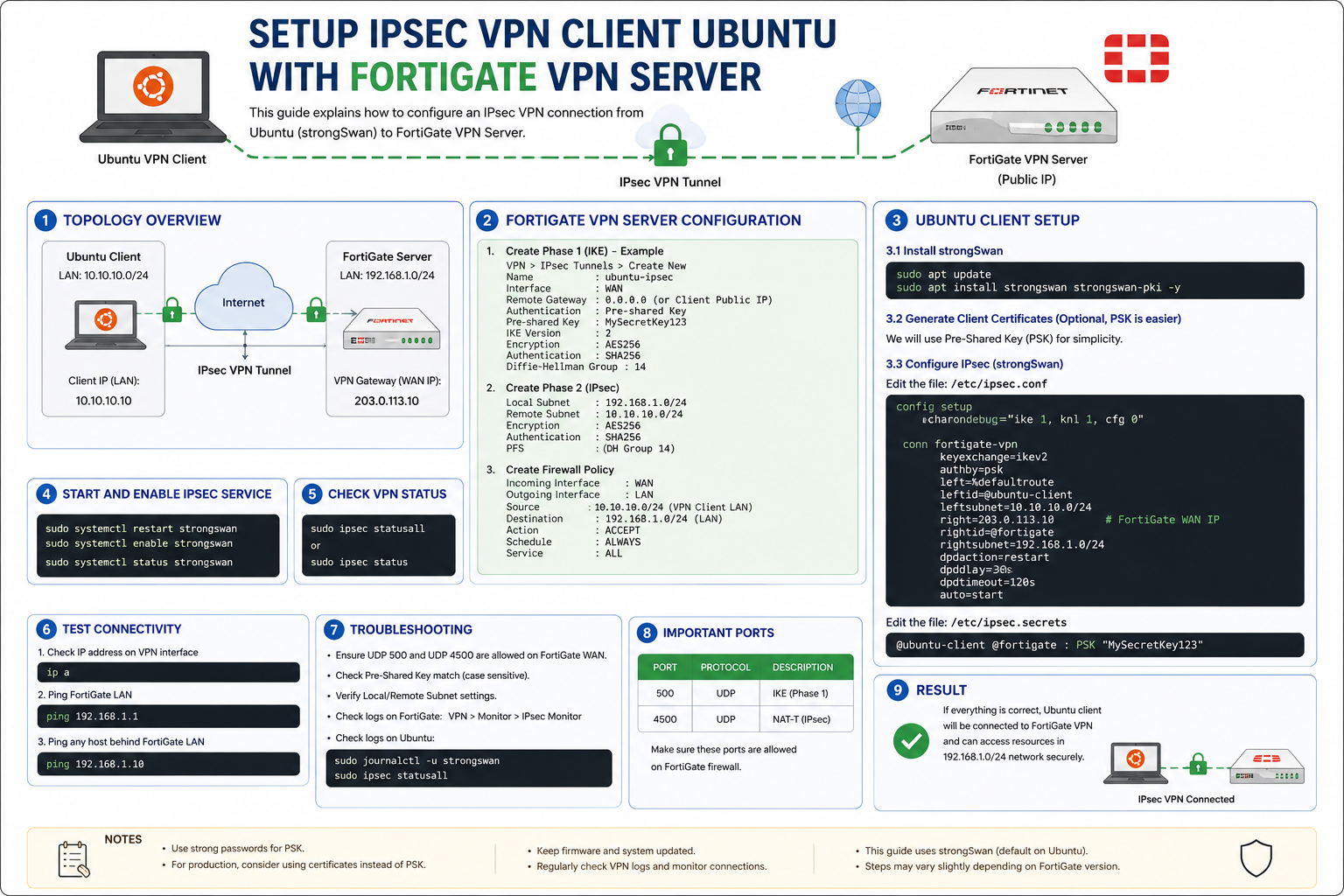
Setup IPSEC VPN Client Ubuntu with FortiGate VPN Server
What is IPSEC VPN?
IPSEC (Internet Protocol Security) is a secure VPN technology used to encrypt communication between two networks or devices over the internet.
In this setup:
- Ubuntu acts as the VPN client
- FortiGate acts as the VPN server
- All traffic between both networks is encrypted securely
This setup is commonly used for:
- Remote office connections
- Secure remote access
- Site-to-site VPN tunnels
- Internal company network access
Network Topology Example
Example network:
| Device | Network |
|---|---|
| Ubuntu Client LAN | 192.168.10.0/24 |
| FortiGate LAN | 192.168.20.0/24 |
| VPN Tunnel | IPSEC Encrypted |
The VPN tunnel securely connects both private networks through the internet.
Install StrongSwan on Ubuntu
strongSwan is commonly used as the IPSEC client on Ubuntu.
Update packages:
sudo apt updateInstall StrongSwan:
sudo apt install strongswan strongswan-pki -yConfigure IPSEC Connection
Edit the IPSEC configuration file:
sudo nano /etc/ipsec.confExample configuration:
config setup
    charondebug="ike 1"

conn fortigate-vpn
    keyexchange=ikev2
    authby=psk

    left=%defaultroute
    leftid=@ubuntu-client
    leftsubnet=192.168.10.0/24

    right=203.0.113.10
    rightid=@fortigate
    rightsubnet=192.168.20.0/24

    ike=aes256-sha256-modp2048
    esp=aes256-sha256

    auto=start
Configure Pre-Shared Key (PSK)
Edit secrets file:
sudo nano /etc/ipsec.secretsExample:
@ubuntu-client @fortigate : PSK "YourStrongPSK"The PSK must match the key configured on the FortiGate server.
Configure FortiGate VPN Server
Inside FortiGate:
Phase 1 (IKE)
- Authentication: Pre-Shared Key
- Encryption: AES256
- Hash: SHA256
- DH Group: 14
- IKE Version: IKEv2
Phase 2 (IPSEC)
- Encryption: AES256
- Authentication: SHA256
- Local subnet: 192.168.20.0/24
- Remote subnet: 192.168.10.0/24
Enable IP Forwarding
Temporary enable:
echo 1 | sudo tee /proc/sys/net/ipv4/ip_forwardPermanent enable:
sudo nano /etc/sysctl.confAdd:
net.ipv4.ip_forward=1Apply changes:
sudo sysctl -pStart IPSEC Service
Restart StrongSwan:
sudo systemctl restart strongswanEnable on boot:
sudo systemctl enable strongswanCheck status:
sudo systemctl status strongswanCheck VPN Status
Check IPSEC tunnel:
sudo ipsec statusallTest connectivity:
ping 192.168.20.1If successful:
- VPN tunnel is active
- Remote network can be accessed securely
Important Ports
| Port | Protocol | Purpose |
|---|---|---|
| 500 | UDP | IKE/IPSEC |
| 4500 | UDP | NAT-T |
| ESP | Protocol 50 | Encrypted traffic |
Make sure these ports are allowed on firewalls.
Troubleshooting Tips
- Verify PSK matches on both sides
- Check firewall rules
- Ensure correct subnet configuration
- Verify internet connectivity
- Check logs:
sudo journalctl -u strongswan -f