PostGIS & PostgreSQL (GIS Cluster) in aaPanel: Architecture and Installation Guide
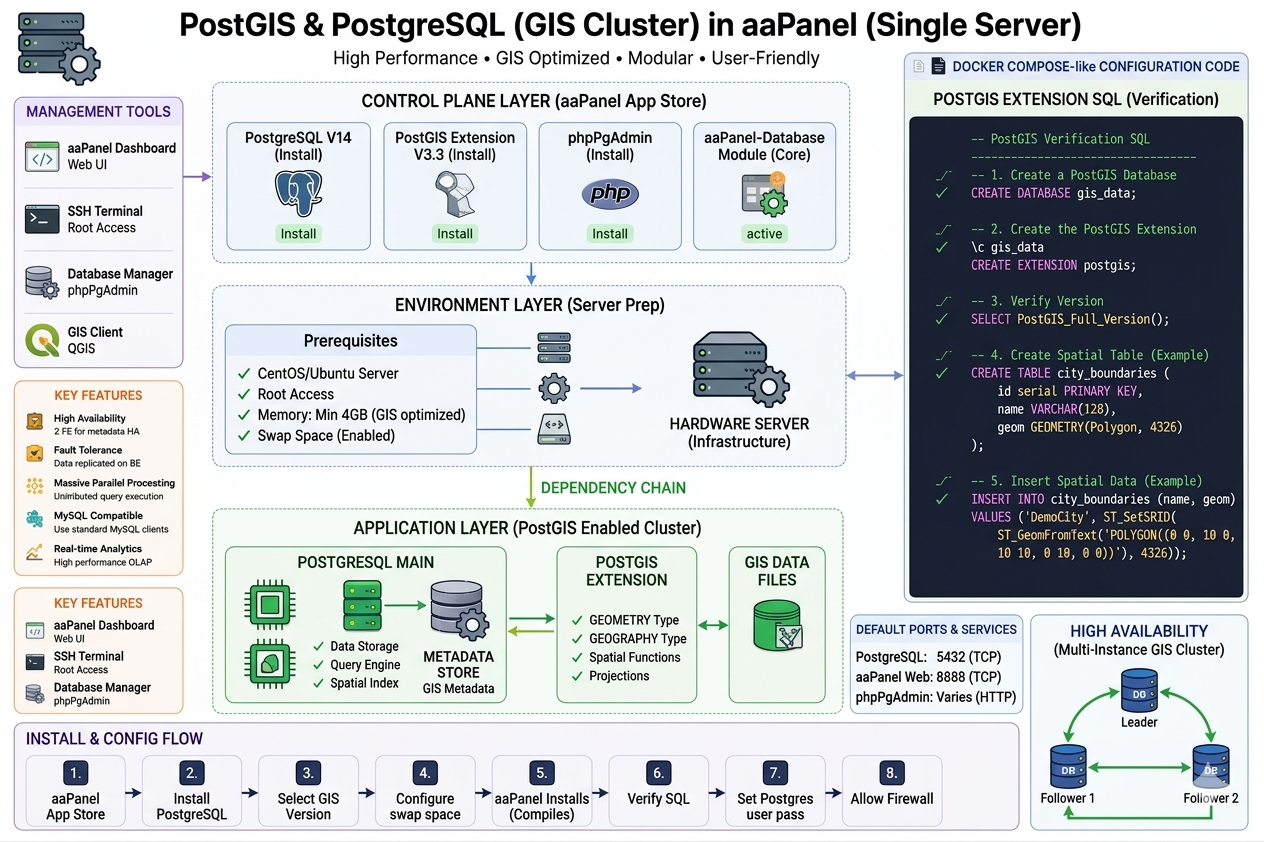
The technical diagram illustrates how PostGIS integrates into an aaPanel-managed single server environment. PostGIS is not a standalone application; it is an extension that supercharges a standard PostgreSQL database, transforming it into a spatial database capable of running Geographic Information System (GIS) queries.
## 1. System Architecture Layers
The architecture is divided into four critical layers to ensure stability and high performance:
- Management Tools (Control Plane): Users interact with the environment via the aaPanel Dashboard Web UI or an SSH Terminal. To manage spatial tables visually, databases can be accessed via phpPgAdmin or desktop GIS software like QGIS using standard database ports.
- Control Plane Layer (aaPanel App Store): This is the orchestration layer. Through the aaPanel App Store, the administrator deploys PostgreSQL and its corresponding PostGIS Extension, which are then tied directly into the core aaPanel database module.
- Environment Layer (Infrastructure): A stable Linux environment (Ubuntu/CentOS) is highly recommended. Because compiling PostGIS requires significant resources, a minimum of 4GB RAM and an active Swap Space are required to prevent out-of-memory (OOM) errors during the installation process.
- Application Layer (The GIS Cluster): Once deployed, the PostgreSQL main instance handles data storage, indexing, and the query engine. The PostGIS Extension injects native spatial data types (
GEOMETRY,GEOGRAPHY), spatial functions, and spatial projections (EPSG) directly into the database core.
## 2. Core Features & Capabilities
- Spatial Indexing: Utilizes R-Tree/GiST (Generalized Search Tree) indexing to query geographic data instantly.
- High Availability (Multi-Instance): The system can be configured in a Leader-Follower setup where spatial metadata is replicated from a master node to multiple read-only follower nodes to handle massive GIS workloads.
- Real-time Analytics: Optimized for high-performance Open Geospatial Consortium (OGC) queries, allowing real-time spatial calculations (e.g., distance, intersections, buffering).
## 3. Step-by-Step Installation & Configuration Flow
Follow this sequence to cleanly deploy the stack on your server:
Phase A: Server Preparation
- Check Swap Space: Before proceeding, log in via SSH and ensure swap space is active. If your server runs out of memory during compilation, the installation will silently fail.
- Verify Ports: Ensure the default PostgreSQL port (5432) and the aaPanel Web port (8888) are open in your provider's security group (e.g., AWS, DigitalOcean).
Phase B: App Store Deployment
- Install PostgreSQL: Open the aaPanel App Store, search for PostgreSQL Manager, and click install. Choose the stable version required for your project (e.g., PostgreSQL 14 or 15).
- Install PostGIS Extension: In the App Store, locate the PostGIS extension. Click install. aaPanel will automatically download the necessary dependencies (
GEOS,PROJ,GDAL), compile them, and hook them into your active PostgreSQL version.
Phase C: Database Initialization & Verification
- Set Postgres User Password: Through the aaPanel Database menu, set a secure password for the default
postgressuperuser. - Create a Spatial Database: Log into your SQL terminal or phpPgAdmin and execute the following SQL script to initialize and test the spatial capabilities:
SQL
-- 1. Create a dedicated GIS database
CREATE DATABASE gis_data;

-- 2. Switch to the database and activate the PostGIS extension
\c gis_data;
CREATE EXTENSION postgis;

-- 3. Verify that PostGIS is active and view the version
SELECT PostGIS_Full_Version();

-- 4. Test by creating a table with a spatial geometry column
CREATE TABLE city_boundaries (
    id serial PRIMARY KEY,
    name VARCHAR(128),
    geom GEOMETRY(Polygon, 4326)
);

-- 5. Insert a sample spatial polygon (WGS 84 projection)
INSERT INTO city_boundaries (name, geom)
VALUES ('DemoCity', ST_SetSRID(ST_GeomFromText('POLYGON((0 0, 10 0, 10 10, 0 10, 0 0))'), 4326));
## 4. Network and Service Default Profiles
To connect external tools like QGIS or a backend application to your newly created aaPanel spatial database, keep these configurations in mind:
| Service / Component | Protocol / Port | Access Type | Purpose |
| aaPanel Web UI | 8888 (TCP) | Browser | App administration and monitoring |
| PostgreSQL / PostGIS | 5432 (TCP) | Database Client | Application connection & GIS queries |
| phpPgAdmin | Varies (HTTP) | Browser | Web-based database management |
| SSH Terminal | 22 (TCP) | Terminal | Root-level environment debugging |