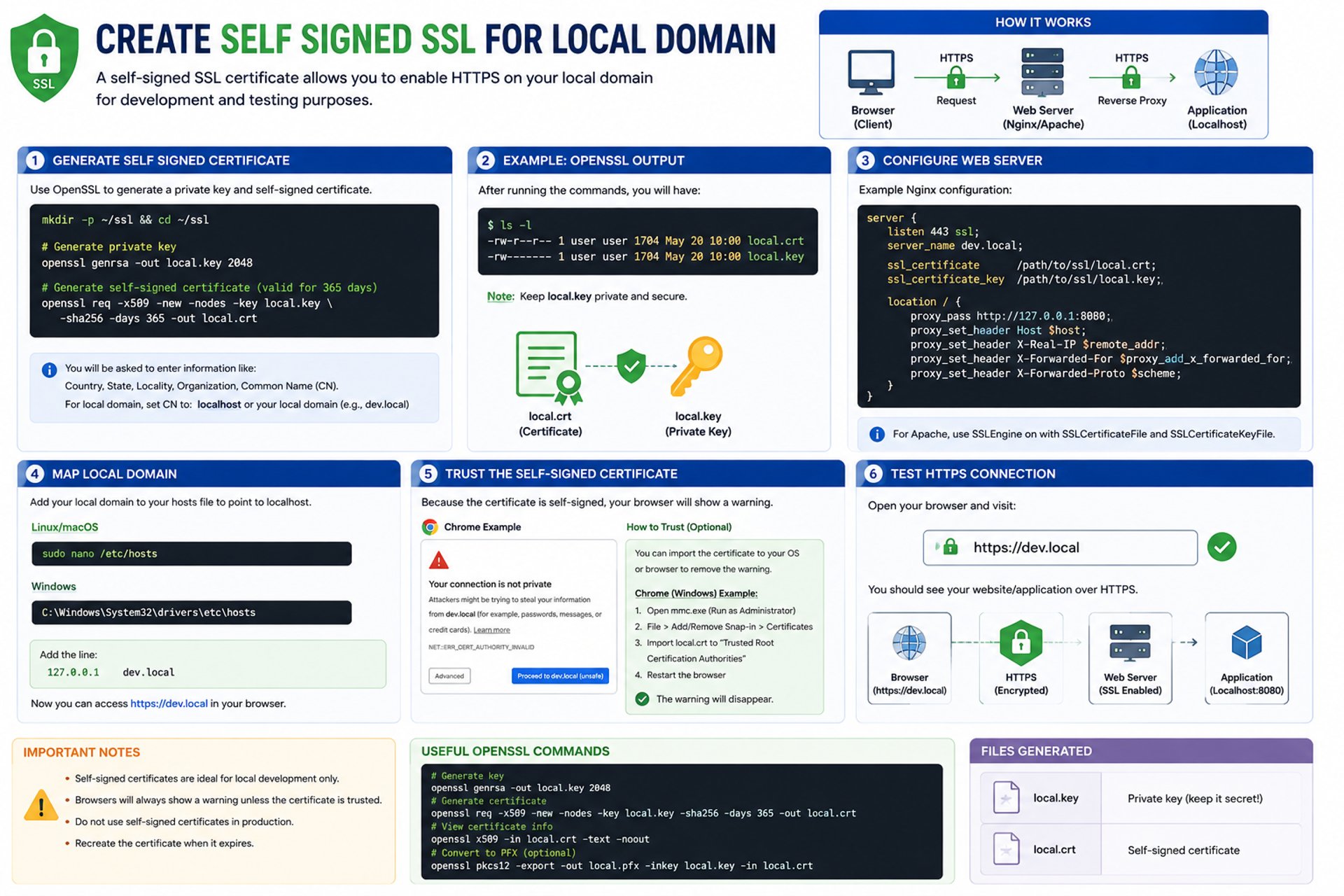
Create Self Signed SSL for Local Domain
What is a Self-Signed SSL Certificate?
A self-signed SSL certificate is a certificate that is created and signed by the user instead of a trusted Certificate Authority (CA).
It is commonly used for:
- Local development
- Internal testing
- Staging servers
- Localhost HTTPS environments
Using HTTPS on a local domain helps developers test secure applications before deploying them to production.
How Self-Signed SSL Works
- Generate a private key
- Create a self-signed certificate
- Configure the web server
- Map the local domain
- Access the site using HTTPS
Example local domain:
https://dev.localGenerate Self-Signed SSL Certificate
You can use OpenSSL to generate the certificate.
Create SSL Directory
mkdir -p ~/ssl
cd ~/ssl
Generate Private Key
openssl genrsa -out local.key 2048This command creates:
local.key→ Private key file
Generate Self-Signed Certificate
openssl req -x509 -new -nodes -key local.key -sha256 -days 365 -out local.crtThis creates:
local.crt→ SSL certificate
The certificate will be valid for 365 days.
Configure Web Server
Example using Nginx:
server {
    listen 443 ssl;
    server_name dev.local;

    ssl_certificate     /path/to/local.crt;
    ssl_certificate_key /path/to/local.key;

    location / {
        proxy_pass http://127.0.0.1:8080;
    }
}
This configuration:
- Enables HTTPS
- Uses the self-signed SSL certificate
- Forwards traffic to the local application
Map Local Domain
Edit your hosts file to map the local domain to localhost.
Linux / macOS
sudo nano /etc/hostsWindows
C:\Windows\System32\drivers\etc\hostsAdd this line:
127.0.0.1 dev.localNow the local domain points to your local machine.
Test HTTPS Connection
Open your browser:
https://dev.localIf configured correctly:
- Your application loads over HTTPS
- SSL encryption is active
- The browser may show a warning because the certificate is self-signed
Browser Warning
Since the certificate is not issued by a trusted CA:
- Browsers display a security warning
- This is normal for local development
You can:
- Continue manually
- Import the certificate into your trusted certificates store
Benefits of Self-Signed SSL
- Free HTTPS testing
- Secure local development
- Simulate production environments
- Test cookies, APIs, and authentication securely
- Useful for internal applications
Important Notes
- Self-signed SSL is recommended for development only
- Do not use self-signed certificates in public production environments
- Keep private keys secure
- Renew certificates when expired