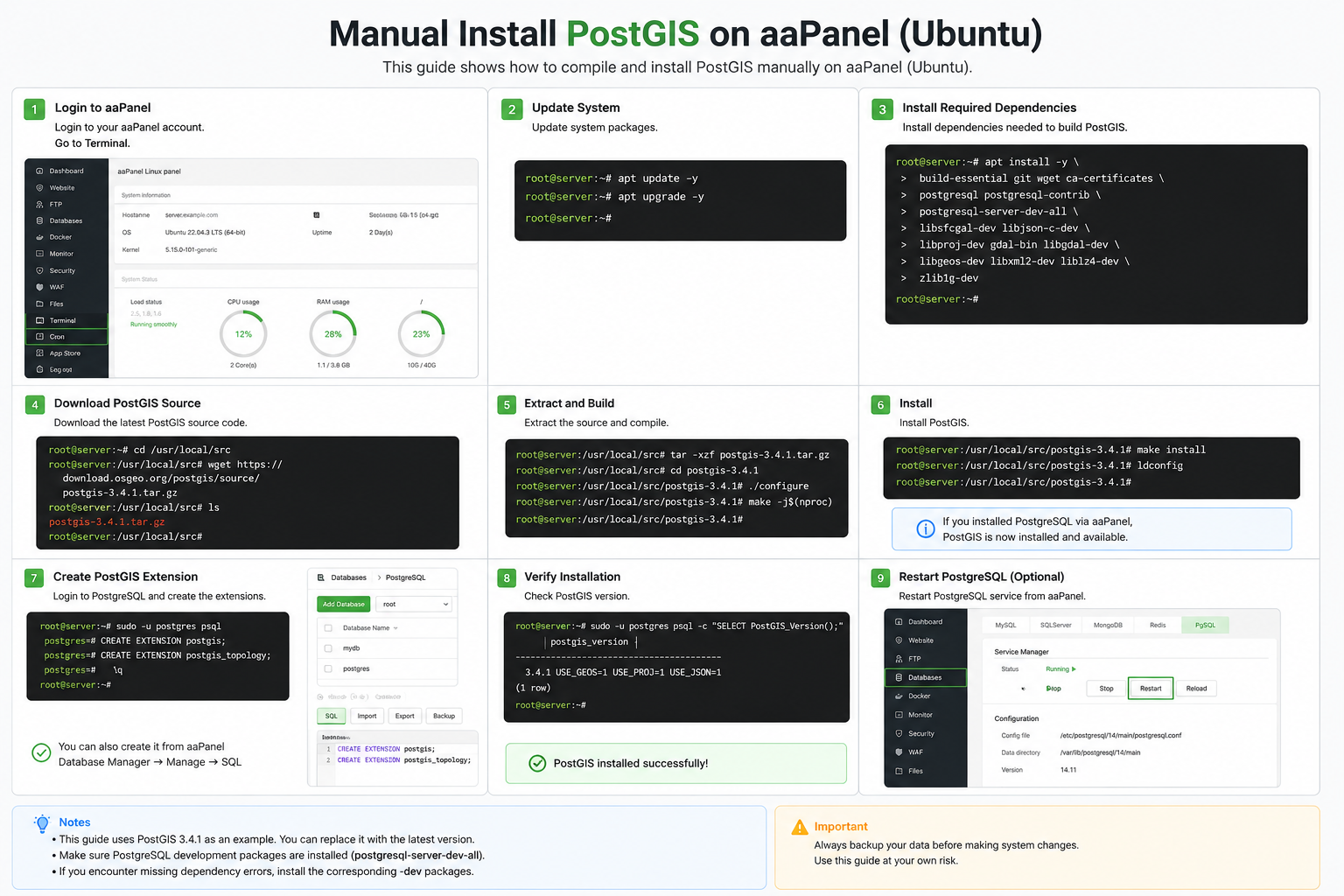
Manual Install PostGIS on aaPanel (Ubuntu) — Explanation
This guide explains how to manually install PostGIS, a spatial database extension for PostgreSQL, on a server managed by aaPanel.
1. Login to aaPanel
First, log in to your aaPanel dashboard and open the Terminal feature.
This gives you direct access to the Linux server where all commands will be executed.
2. Update the System
Before installing anything, update your system packages:
apt update -y
apt upgrade -y
This ensures your server has the latest security patches and dependencies.
3. Install Required Dependencies
Install all necessary libraries required to compile PostGIS:
- PostgreSQL development tools
- GEOS, GDAL, PROJ libraries
- Build tools (gcc, make, etc.)
These dependencies are essential because PostGIS relies on geospatial libraries to function correctly.
4. Download PostGIS Source Code
Navigate to a working directory and download the PostGIS source package:
cd /usr/local/src
wget https://download.osgeo.org/postgis/source/postgis-3.4.1.tar.gz
Then extract the file.
5. Extract and Build
Extract and compile the source code:
tar -xzf postgis-3.4.1.tar.gz
cd postgis-3.4.1
./configure
make -j$(nproc)
This step prepares PostGIS for installation on your system.
6. Install PostGIS
Install the compiled package:
make install
ldconfig
After this step, PostGIS is installed on your server.
7. Create PostGIS Extension in PostgreSQL
Log into PostgreSQL and enable PostGIS:
CREATE EXTENSION postgis;
CREATE EXTENSION postgis_topology;
This activates spatial features inside your database.
8. Verify Installation
Check if PostGIS is installed correctly:
SELECT PostGIS_version();If a version number appears, the installation is successful.
9. Restart PostgreSQL (Optional)
You can restart PostgreSQL from aaPanel to apply all changes:
- Go to aaPanel → Database → PostgreSQL
- Click Restart