Quick Guide: How to Install Docker CE (Community Edition) on Linux
Docker CE is the most popular open-source containerization platform. Follow these detailed steps to set up the repository, install the Docker engine, and run your first container.
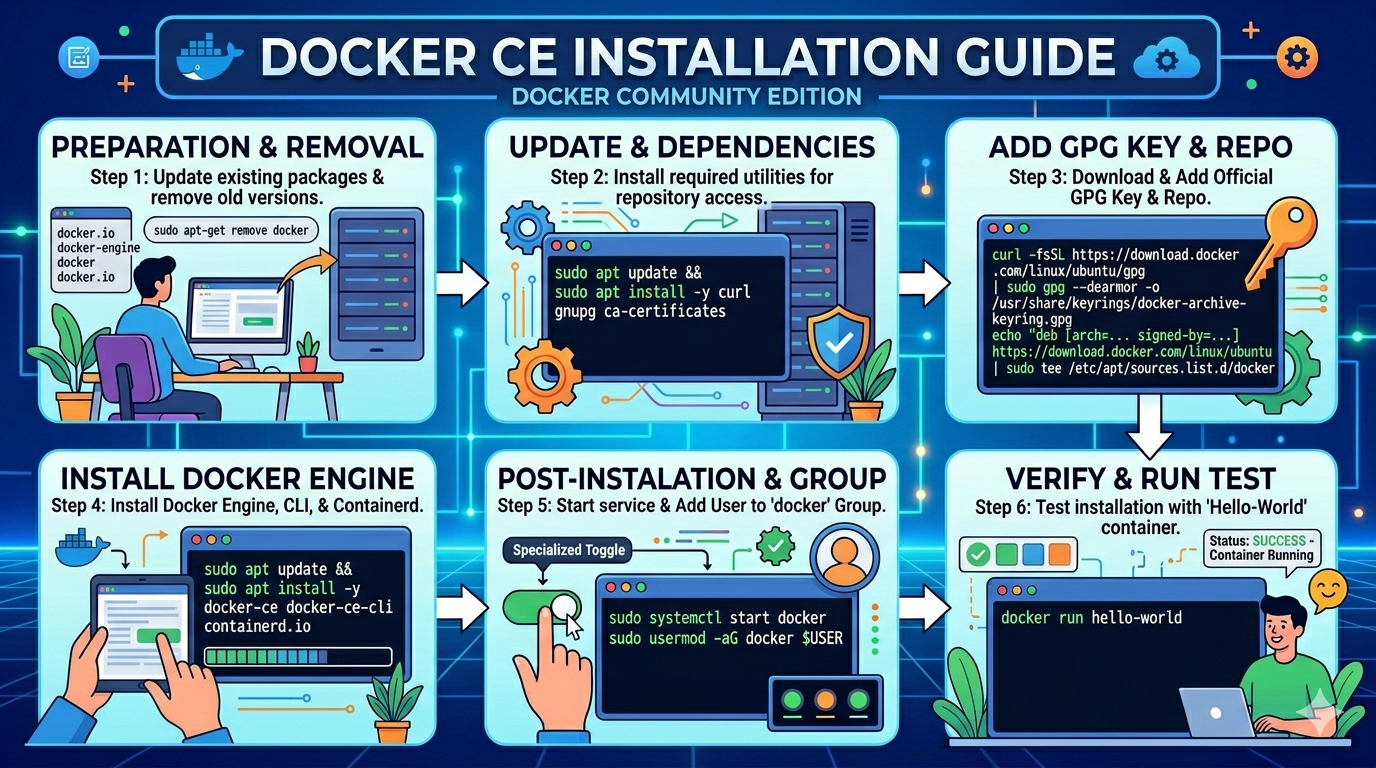
1. Preparation & Prerequisite Removal
Before starting, ensure your system is clean. If you have any older Docker or Moby versions installed (e.g., docker, docker.io, docker-engine), remove them to prevent conflicts.
2. Update System & Install Dependencies
The installation relies on a few key tools (like curl, gnupg, and ca-certificates) to manage repositories and security keys. Start by updating your existing package list and installing these dependencies.
3. Add Docker GPG Key & Repository
To install the official Docker packages, you must establish trust. First, download and add the Docker official GPG (GNU Privacy Guard) key. Next, add the specific stable Docker repository for your architecture to your system's sources list.
4. Install Docker Engine
With the trusted repository added, update your package list again. Then, you can install the core Docker components: the Docker Engine (docker-ce), the command-line interface (docker-ce-cli), and the container runtime (containerd.io).
5. Post-Installation Steps
After installation, the Docker service usually starts automatically. However, for seamless operation, you should start and enable the Docker service to run on boot. Critically, to run Docker commands without needing sudo every time, you must add your current user to the newly created docker group.
6. Verify Installation
To confirm everything is working correctly, run a simple test. Use the docker run hello-world command. Docker will pull a tiny image, run it as a container, print a confirmation message, and then exit. If you see the "Hello from Docker!" message, your installation is successful.