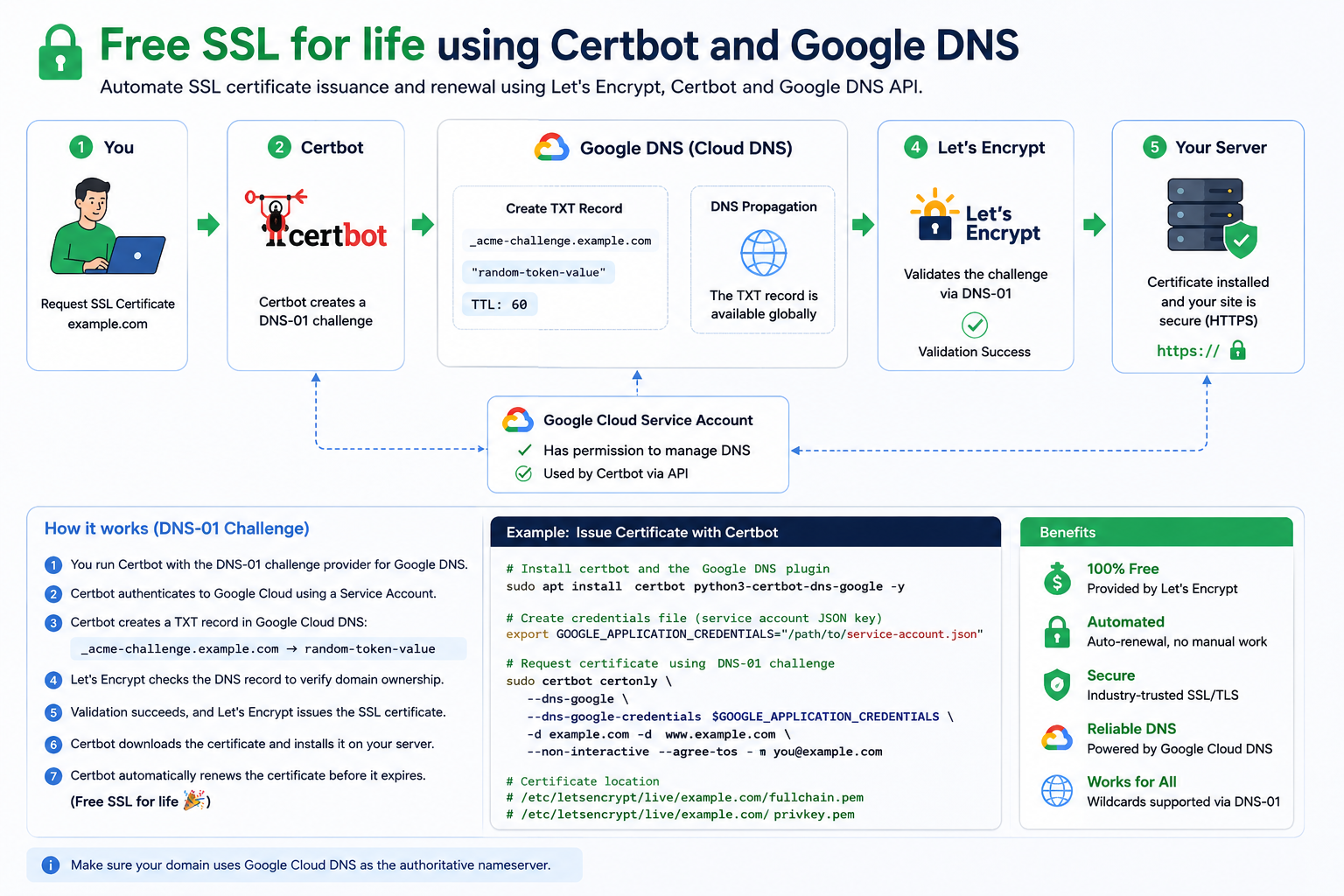
Free SSL for Life Using Certbot and Google DNS
Overview
This setup allows you to obtain and automatically renew SSL/TLS certificates for free using Certbot, Let's Encrypt, and Google Cloud DNS. By using the DNS-01 challenge method, certificates can be issued without opening web server ports, and wildcard certificates are also supported.
Components
1. Certbot
Certbot is an open-source tool that automates the process of requesting, installing, and renewing SSL certificates from Let's Encrypt.
Key Functions:
- Requests SSL certificates
- Creates DNS validation records
- Downloads certificates
- Automatically renews certificates before expiration
2. Google Cloud DNS
Google Cloud DNS hosts your domain's DNS records and provides an API that Certbot can use to create validation records automatically.
Benefits:
- Fast DNS propagation
- Reliable infrastructure
- API-based automation
- Supports DNS-01 challenge validation
3. Let's Encrypt
Let's Encrypt is a free Certificate Authority (CA) that issues trusted SSL/TLS certificates.
Benefits:
- Completely free
- Trusted by modern browsers
- Supports wildcard certificates
- Automated issuance and renewal
4. Google Cloud Service Account
A Service Account is used to authenticate Certbot with Google Cloud DNS.
Responsibilities:
- Manage DNS records via API
- Create and remove TXT records automatically
- Enable unattended certificate renewal
How the DNS-01 Challenge Works
Step 1: Request a Certificate
You run Certbot and specify the Google DNS plugin.
certbot certonly --dns-googleStep 2: Create TXT Validation Record
Certbot connects to Google Cloud DNS and creates a TXT record.
Example:
_acme-challenge.example.comTXT Value:
random-verification-tokenStep 3: DNS Propagation
The TXT record becomes available on the public DNS system.
Google DNS distributes the record globally so that Let's Encrypt can verify it.
Step 4: Domain Validation
Let's Encrypt checks the TXT record.
If the record matches the expected token, domain ownership is confirmed.
Step 5: Certificate Issuance
After successful validation, Let's Encrypt generates the SSL certificate.
Files are typically stored in:
/etc/letsencrypt/live/example.com/Including:
fullchain.pem
privkey.pem
Step 6: Install the Certificate
The certificate is configured on your web server such as:
- Nginx
- Apache
- HAProxy
- Traefik
Your website is now accessible through:
https://yourdomain.comStep 7: Automatic Renewal
Let's Encrypt certificates are valid for 90 days.
Certbot automatically renews certificates before they expire.
Example renewal test:
certbot renew --dry-runThis ensures continuous HTTPS protection without manual intervention.
Example Installation
Install Certbot and the Google DNS plugin:
sudo apt update
sudo apt install certbot python3-certbot-dns-google -y
Set Google credentials:
export GOOGLE_APPLICATION_CREDENTIALS="/path/service-account.json"Request a certificate:
sudo certbot certonly \
  --dns-google \
  --dns-google-credentials $GOOGLE_APPLICATION_CREDENTIALS \
  -d example.com \
  -d "*.example.com"