Resize Root (/) Partition on Linux Without Volume Group Using cfdisk
Overview
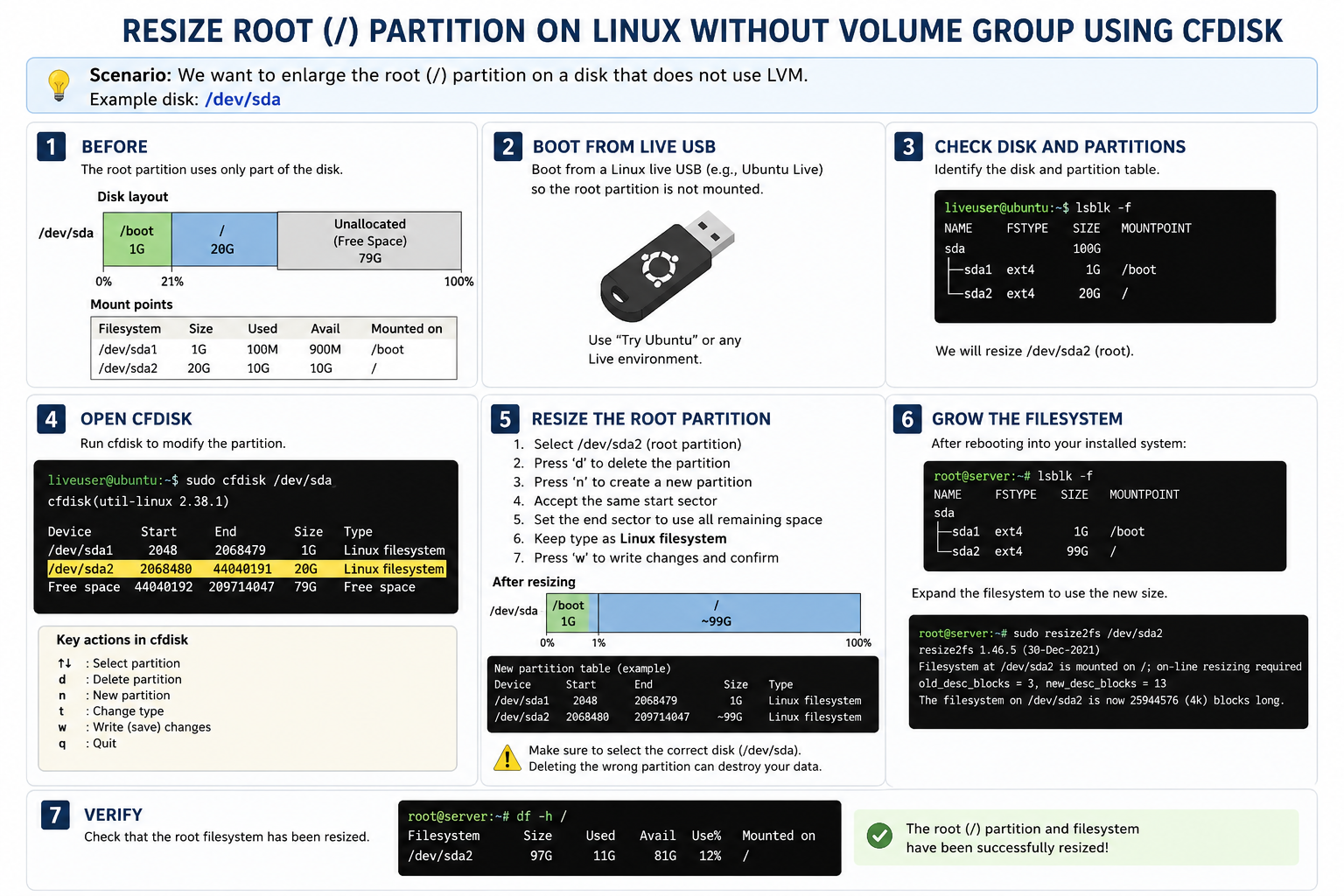
This process is used when your Linux system does not use LVM (Logical Volume Manager) and you want to enlarge the root (/) partition by using free unallocated disk space.
The example in the illustration uses:
- Disk:
/dev/sda - Root partition:
/dev/sda2 - Tool:
cfdisk
Step-by-Step Explanation
1. Check Current Disk Layout
Before resizing, check the partition structure:
lsblk -fExample:
NAME   FSTYPE SIZE MOUNTPOINT
sda           100G
├─sda1 ext4     1G /boot
└─sda2 ext4    20G /
This shows:
/dev/sda1→ boot partition/dev/sda2→ root partition (/)- Remaining disk space is unallocated
2. Boot Using a Live USB
You cannot resize the root partition while it is mounted and actively used.
Boot the system using:
- Ubuntu Live USB
- Debian Live USB
- Any Linux live environment
Choose:
Try Ubuntuor similar live mode.
3. Open cfdisk
Run:
sudo cfdisk /dev/sdaYou will see the partition table and free space.
4. Delete and Recreate the Root Partition
In cfdisk:
- Select
/dev/sda2 - Press
Delete - Select
Free Space - Press
New - Create a new partition using all remaining free space
- Make sure:
- Start sector is exactly the same as before
- Type remains
Linux filesystem
- Press
Write - Type:
yes- Quit
cfdisk
Important:
As long as the starting sector stays the same, your data is usually preserved.
5. Reboot the System
Restart normally into your installed Linux system.
6. Resize the Filesystem
After the partition becomes larger, expand the filesystem:
For EXT4:
sudo resize2fs /dev/sda2For XFS:
sudo xfs_growfs /7. Verify the Result
Check the new size:
df -hExample output:
Filesystem      Size  Used Avail Use% Mounted on
/dev/sda2        97G   11G   81G  12% /
Now the root partition successfully uses the additional space.
Important Notes
⚠️ Always backup important data before resizing partitions.
⚠️ Make sure you select the correct disk (/dev/sda).
⚠️ If the start sector changes accidentally, the filesystem may become corrupted.
⚠️ This method is intended for non-LVM Linux systems only.