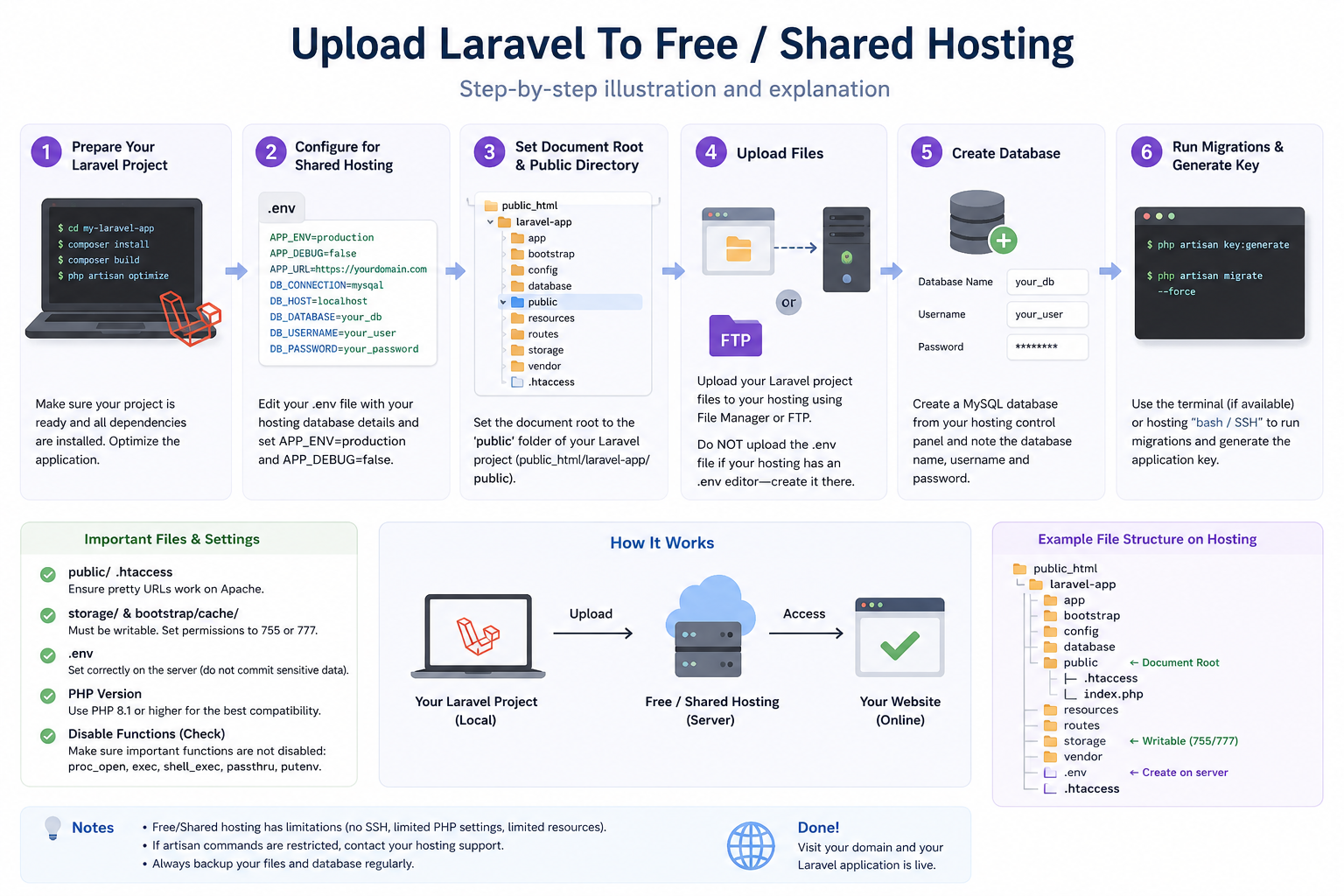
Upload Laravel To Free / Shared Hosting
Uploading a Laravel project to free or shared hosting requires a few adjustments because most shared hosting providers do not give full server access like VPS hosting.
1. Prepare Your Laravel Project
Before uploading, optimize your Laravel application on your local computer.
Run these commands:
composer install
composer update
php artisan config:cache
php artisan route:cache
php artisan view:cache
Optional optimization:
php artisan optimizeThis helps improve performance and reduce loading time.
2. Configure the .env File
Edit your .env file according to your hosting configuration.
Example:
APP_ENV=production
APP_DEBUG=false
APP_URL=https://yourdomain.com

DB_CONNECTION=mysql
DB_HOST=localhost
DB_PORT=3306
DB_DATABASE=your_database
DB_USERNAME=your_username
DB_PASSWORD=your_password
Important:
- Set
APP_DEBUG=falsefor security. - Use the database credentials provided by your hosting provider.
3. Set the Public Folder Correctly
Laravel uses the public folder as the web root.
On shared hosting:
Option 1 (Recommended)
Point your domain document root to:
/publicExample:
public_html/laravel-app/publicOption 2 (If document root cannot be changed)
Move the contents of the Laravel public folder into public_html.
Then edit index.php:
From:
require __DIR__.'/../vendor/autoload.php';
$app = require_once __DIR__.'/../bootstrap/app.php';
To:
require __DIR__.'/vendor/autoload.php';
$app = require_once __DIR__.'/bootstrap/app.php';
4. Upload Laravel Files
You can upload files using:
- File Manager (cPanel)
- FTP Client
- SSH (if available)
Upload:
appbootstrapconfigdatabaseresourcesroutesstoragevendor
Do NOT forget:
.env.htaccess
5. Create a Database
From your hosting control panel:
- Create a MySQL database
- Create a database user
- Assign the user to the database
- Give all privileges
Then update the .env file with the correct database details.
6. Generate Application Key
If SSH/Terminal access is available:
php artisan key:generateIf not available:
- Generate locally first
- Copy the generated
APP_KEYinto the.envfile
Example:
APP_KEY=base64:xxxxxxxxxxxxxxxx7. Run Database Migration
If terminal access is available:
php artisan migrate --forceIf migration is not allowed:
- Export your local database using phpMyAdmin
- Import it into the hosting database
8. Set Folder Permissions
Laravel needs writable permissions for:
storage
bootstrap/cache
Recommended permissions:
755 or 775Some hosting providers may require 777.
9. Common Problems
500 Internal Server Error
Usually caused by:
- Wrong
.env - Incorrect permissions
- Missing
.htaccess
Vendor Folder Missing
Run locally:
composer installThen upload the vendor folder.
Blank Page
Enable temporary debugging:
APP_DEBUG=trueAfter fixing the issue, change it back to:
APP_DEBUG=false10. Final Check
After upload:
- Open your domain
- Test login and database connection
- Check image upload
- Test routes and forms
If everything works, your Laravel application is successfully deployed on free/shared hosting.