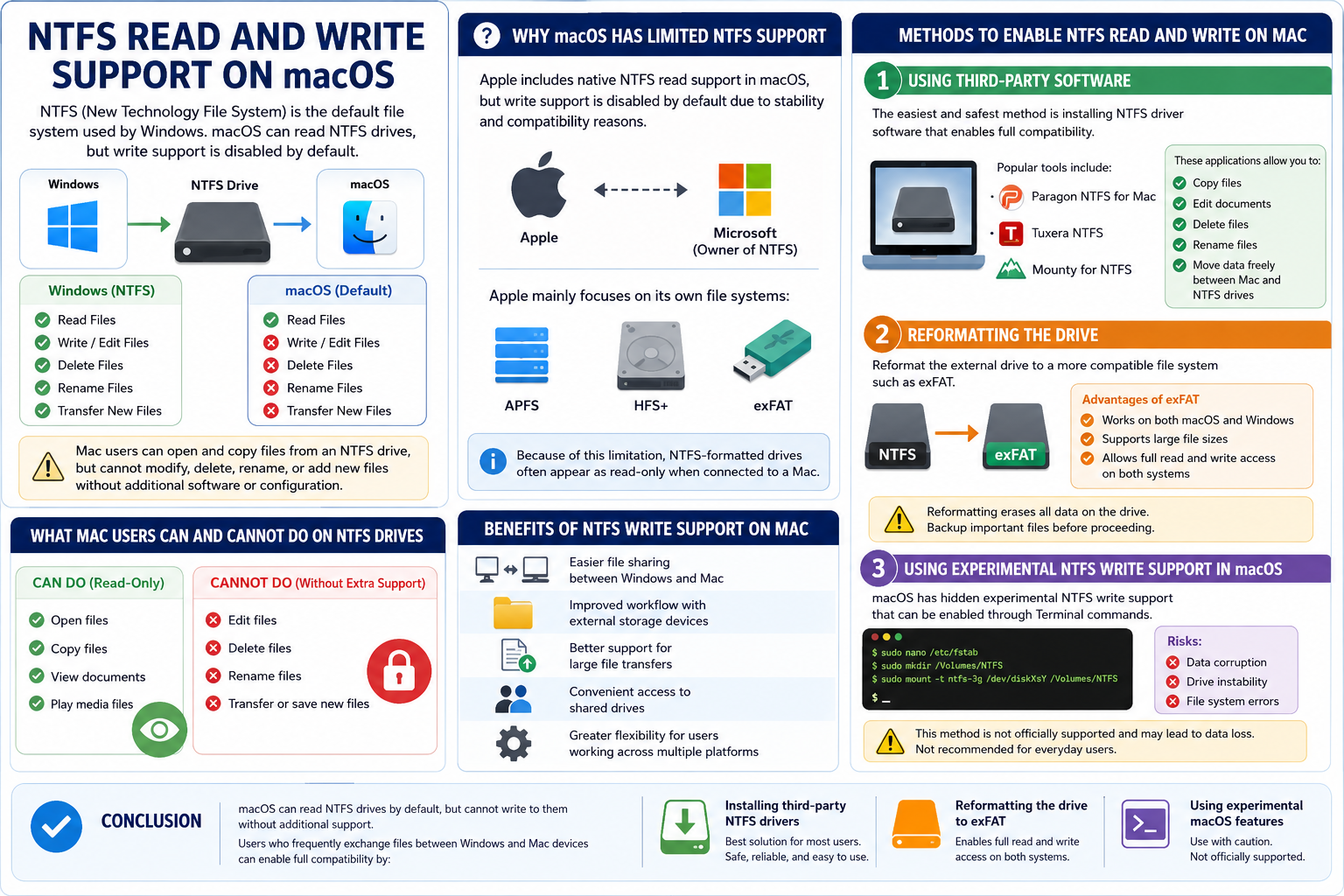
NTFS Read and Write Support on macOS
macOS can easily read files stored on drives formatted with NTFS, which is the default file system used by Microsoft Windows operating systems. However, macOS does not provide full write support for NTFS drives by default.
This means Mac users can view and copy files from an NTFS external drive, but they usually cannot:
- Edit files directly on the drive
- Delete files
- Rename files
- Transfer or save new files to the drive
To gain full read and write access, users need additional software or alternative configurations.
Why macOS Has Limited NTFS Support
Apple includes native NTFS read support in macOS, but write support is disabled by default due to stability and compatibility concerns. Since NTFS is owned and developed by Microsoft, Apple primarily focuses on its own file systems, including:
- APFS
- HFS+
- exFAT
Because of this limitation, NTFS-formatted drives often appear as read-only when connected to a Mac.
Methods to Enable NTFS Read and Write on Mac
1. Using Third-Party Software
The easiest and safest method is installing NTFS driver software that enables full compatibility between macOS and NTFS drives.
Popular tools include:
- Paragon NTFS for Mac
- Tuxera NTFS
- Mounty for NTFS
These applications allow users to:
- Copy files
- Edit documents
- Delete files
- Move data freely between Mac and NTFS drives
For most users, this is the most practical solution.
2. Reformatting the Drive
Another option is reformatting the external drive into a more compatible file system such as exFAT.
Advantages of exFAT
- Compatible with both macOS and Windows
- Supports large file sizes
- Allows full read and write access on both systems
However, reformatting erases all existing data on the drive, so backing up important files beforehand is essential.
3. Using Experimental NTFS Write Support in macOS
macOS includes hidden experimental NTFS write support that can be enabled through Terminal commands. However, this method is not officially supported and may lead to:
- Data corruption
- Drive instability
- File system errors
Because of these risks, it is generally not recommended for everyday users.
Benefits of Enabling NTFS Write Support on Mac
Full NTFS compatibility provides several advantages:
- Easier file sharing between Windows and Mac
- Improved workflow with external storage devices
- Better support for large file transfers
- Convenient access to shared drives
- Greater flexibility for users working across multiple platforms
Conclusion
Although macOS can read NTFS drives by default, it cannot write to them without additional support. Users who frequently exchange files between Windows and Mac devices can enable full compatibility by:
- Installing third-party NTFS drivers
- Reformatting the drive to exFAT
- Using experimental macOS features (with caution)
For reliability and ease of use, third-party NTFS software is generally considered the best solution for most Mac users.