GitLab on Ubuntu
Introduction
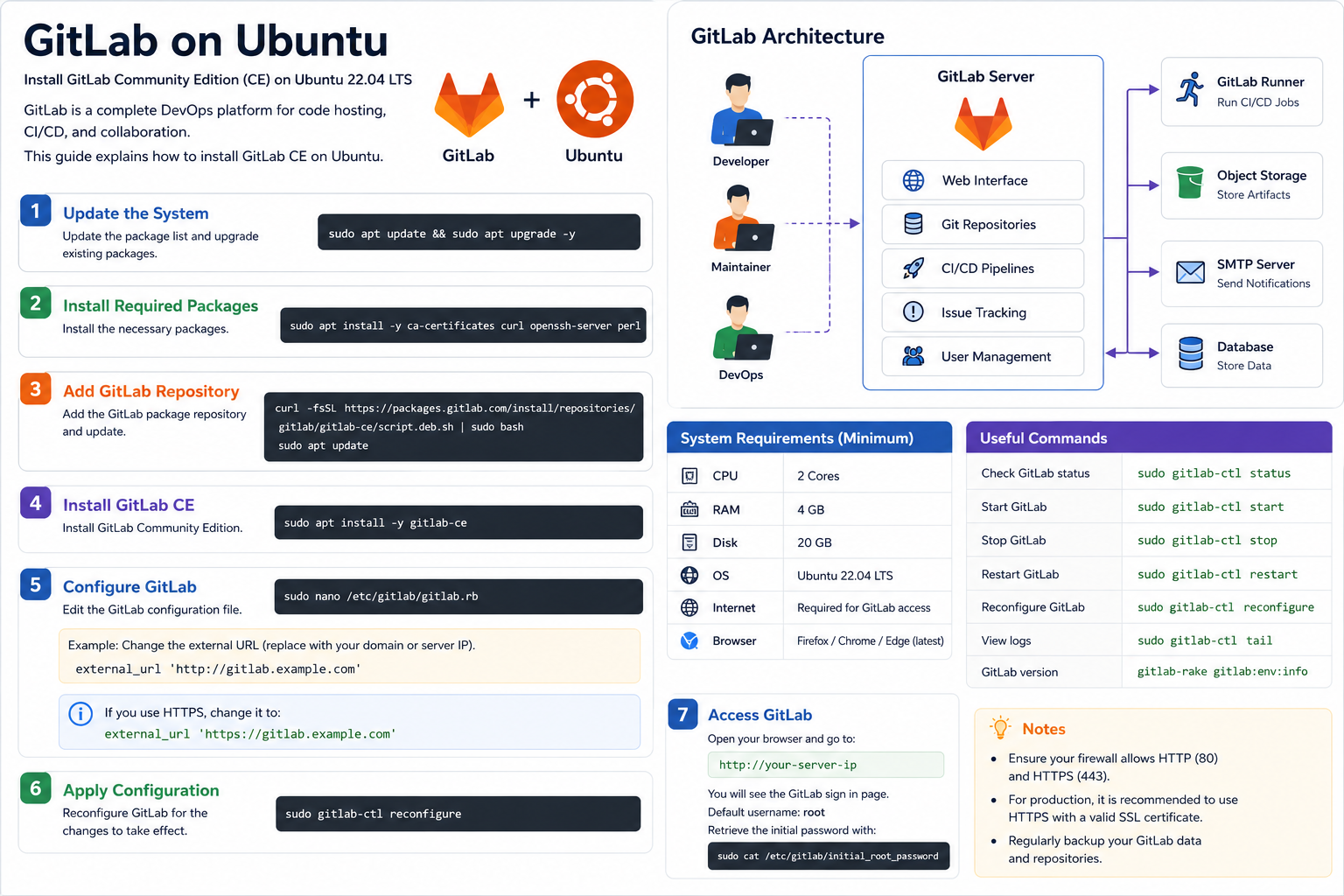
Installing GitLab on Ubuntu is a popular choice for developers and organizations that want a complete DevOps platform for source code management, CI/CD pipelines, collaboration, and version control. GitLab provides powerful features for software development teams in a single integrated platform.
Ubuntu is widely used as a server operating system because of its stability, security, and long-term support.
What is GitLab?
GitLab is a web-based DevOps platform that provides:
- Git repository management
- Continuous Integration and Continuous Deployment (CI/CD)
- Issue tracking
- Team collaboration tools
- Project management features
- Code review and merge requests
GitLab can be hosted locally on Ubuntu servers for better control and security.
System Requirements
Before installing GitLab on Ubuntu, make sure the server meets the minimum requirements:
- Ubuntu 20.04 or Ubuntu 22.04
- Minimum 4 GB RAM
- Dual-core CPU
- At least 10 GB free storage
- Stable internet connection
A domain name is also recommended for production environments.
Updating Ubuntu Packages
First, update the Ubuntu system packages.
sudo apt update && sudo apt upgrade -y
Keeping packages updated improves security and compatibility.
Installing Required Dependencies
Install required packages before installing GitLab.
sudo apt install -y curl openssh-server ca-certificates tzdata perl
Optional email support:
sudo apt install -y postfix
During the Postfix installation, select “Internet Site”.
Adding the GitLab Repository
Add the official GitLab repository to Ubuntu.
curl https://packages.gitlab.com/install/repositories/gitlab/gitlab-ee/script.deb.sh | sudo bash
This command automatically configures the repository for GitLab installation.
Installing GitLab
Install GitLab using the following command:
sudo EXTERNAL_URL="http://gitlab.example.com" apt install gitlab-ee
Replace:
gitlab.example.com
with your actual domain or server IP address.
Accessing GitLab Web Interface
After installation is complete:
- Open a web browser
- Enter the server IP address or domain
- Create a new administrator password
- Log in using the username:
root
GitLab is now ready to use.
Common GitLab Commands
Check GitLab status:
sudo gitlab-ctl status
Restart GitLab services:
sudo gitlab-ctl restart
Reconfigure GitLab:
sudo gitlab-ctl reconfigure
View logs:
sudo gitlab-ctl tail
Benefits of Using GitLab on Ubuntu
Using GitLab on Ubuntu provides several advantages:
- Complete DevOps platform
- Better project collaboration
- Integrated CI/CD automation
- Secure self-hosted repositories
- Efficient version control management
- Strong Linux server compatibility
Ubuntu also offers excellent long-term support and security updates.
Common Problems During Installation
Some users may experience installation issues such as:
- Insufficient RAM
- Firewall blocking HTTP/HTTPS ports
- Incorrect domain configuration
- Slow package downloads
- DNS resolution issues
Always verify server connectivity and system resources before installation.
Conclusion
GitLab on Ubuntu is an excellent solution for developers and teams that need a reliable DevOps and version control platform. With proper installation and configuration, GitLab can simplify software development workflows, improve collaboration, and automate deployment processes.
Ubuntu provides a stable environment for hosting GitLab servers, making it a popular choice for both small projects and enterprise applications.